 TrustRouting
1. Download the APK
Download the approved TrustRouting APK from the official download link. Prefer a dedicated test handset.

Install
Install the Android agent on your own test device (Android 12+), sign in with magic link, choose Community or request Private, then connect to the admin dashboard.
Prerequisites: Android 12+, own SIM, dedicated test device recommended. Do not enable USB Debugging or Wireless Debugging for normal setup.
Download the approved TrustRouting APK from the official download link. Prefer a dedicated test handset.
Open the APK from Downloads. If Android asks, allow installation from that browser or files source, then tap Install.

When installation finishes, launch the app.

Open the Auth tab, accept Terms, enter your email, and confirm via secure Magic Link.


Start on Community for free testing with your own devices, or request a Private workspace when your organization requires private data handling. See Pricing.


Allow the permissions required for the channels being tested. Details on the permissions page.


For supported WhatsApp / Viber / Telegram OTP notification capture, grant Notification Access and enable the relevant toggles. TrustRouting does not import full chat history.

Allow TrustRouting to run in the background so evidence syncs to the web promptly. Apply battery exemptions if your device OEM requires them for reliable unattended operation.

Only enable Remote Access on devices you are authorized to manage.
For full remote navigation, select Entire screen. Sharing one app only can prevent the remote operator from following a test flow across the browser, service app and Android settings. Screen sharing provides the view; Accessibility/remote-control permission is required for remote taps and navigation where the Android implementation requires it.
If your Android build requires Allow restricted settings for Accessibility, enable it only in this Remote Access troubleshooting path — not as a first install step.
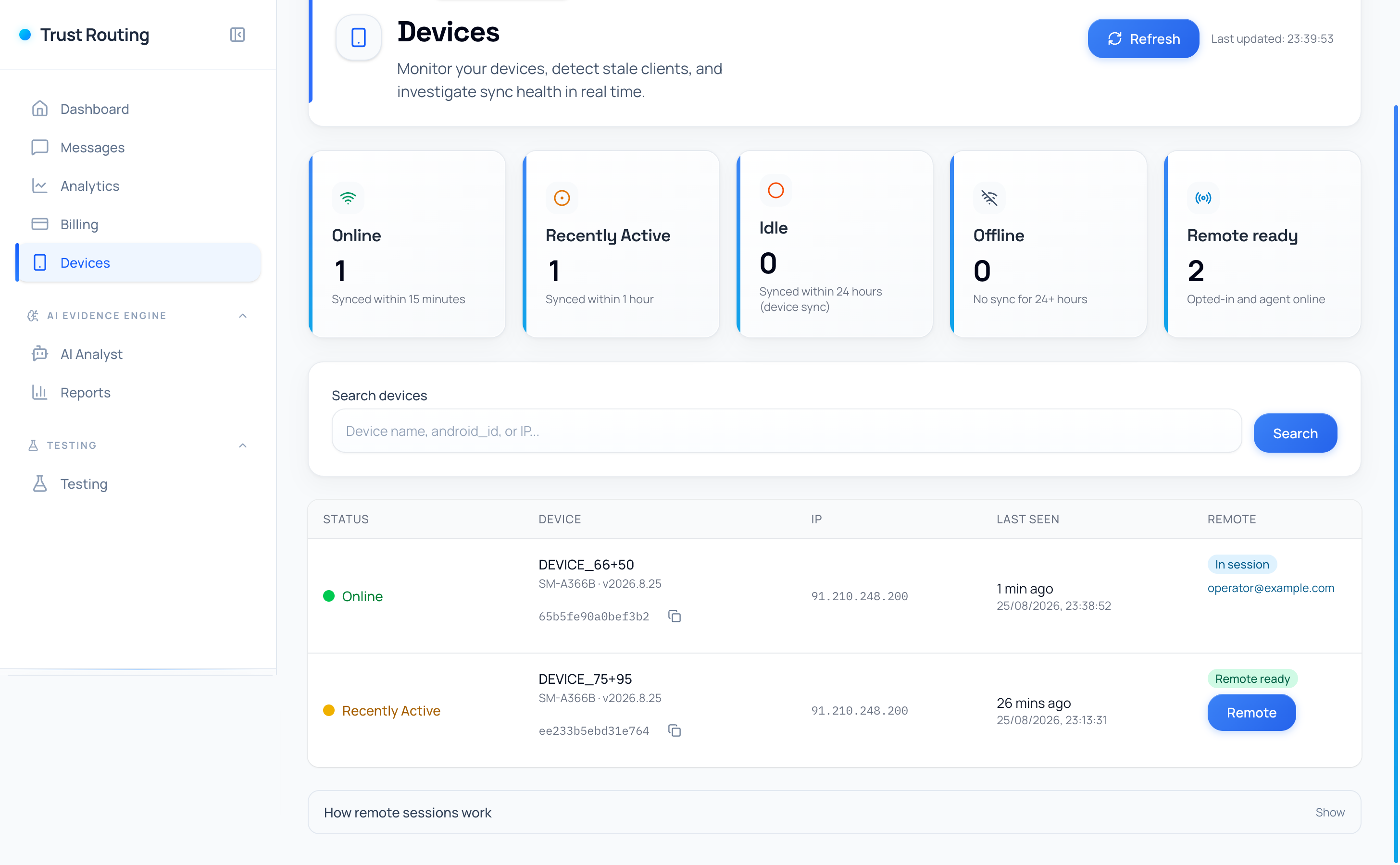
Open the Admin Panel and confirm the device appears online. If you enabled remote, confirm Remote Ready status.

Most devices install normally. Use these steps only when Android or Play Protect blocks the approved APK.
If Play Protect blocks the install: open Settings > Google Play Protect (path may vary), temporarily turn off “Scan apps with Play Protect”, complete installation, then re-enable protection.

Tap OK to dismiss, then allow install from your browser/files source or review Play Protect as above.
